Built for iPhone
Everything you need to turn HEIC into JPG.
One photo, a complete batch, and control over the result.
Batch HEIC to JPG Converter brings source selection, JPG output settings, on-device conversion, and saving into one iPhone workflow. Import from Photos or Files, choose quality, resolution, and location metadata, then save the results where the next step needs them.
From selection
to finished JPG.
The app is organized around the decisions that actually change the output: which photos are included, how the JPG is configured, where it is saved, and whether the same setup should be reused.
01 / SINGLE & BATCH
Convert one photo.
Or the entire set.
Select one HEIC or HEIF image for a single result, or choose multiple photos and apply one configuration to the complete batch.
Read the batch conversion guide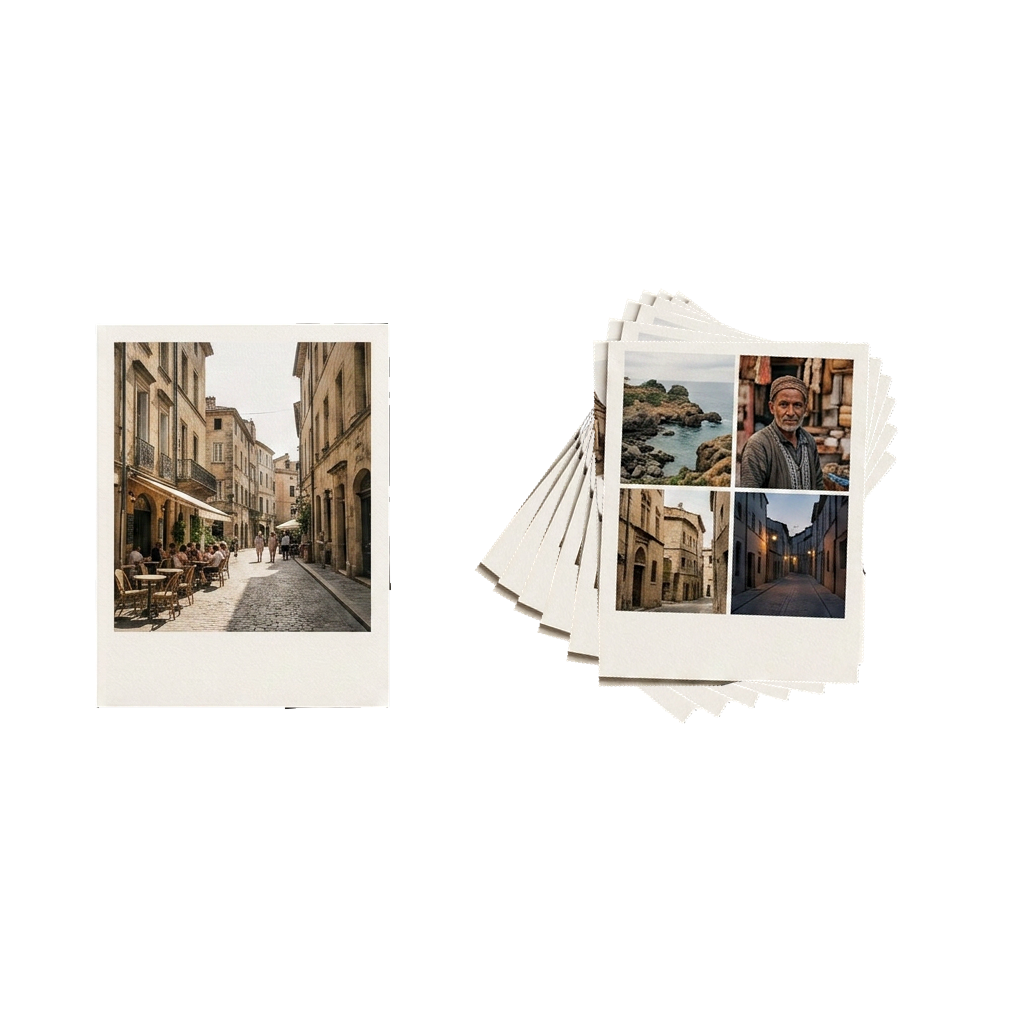
02 / ROUTINES & HISTORY
Keep the setup.
Return to the work.
Save a reusable conversion routine for recurring output choices. Conversion history provides a local path back to completed jobs.

03 / JPG OUTPUT
Configure the copy
before it is created.
04 / PHOTOS & FILES
Use the source and destination
that fit the job.
Import from Photos or Files. Save converted JPGs back to Photos or into a Files folder for a folder-based upload, organization, or sharing workflow.
Read the iPhone conversion guide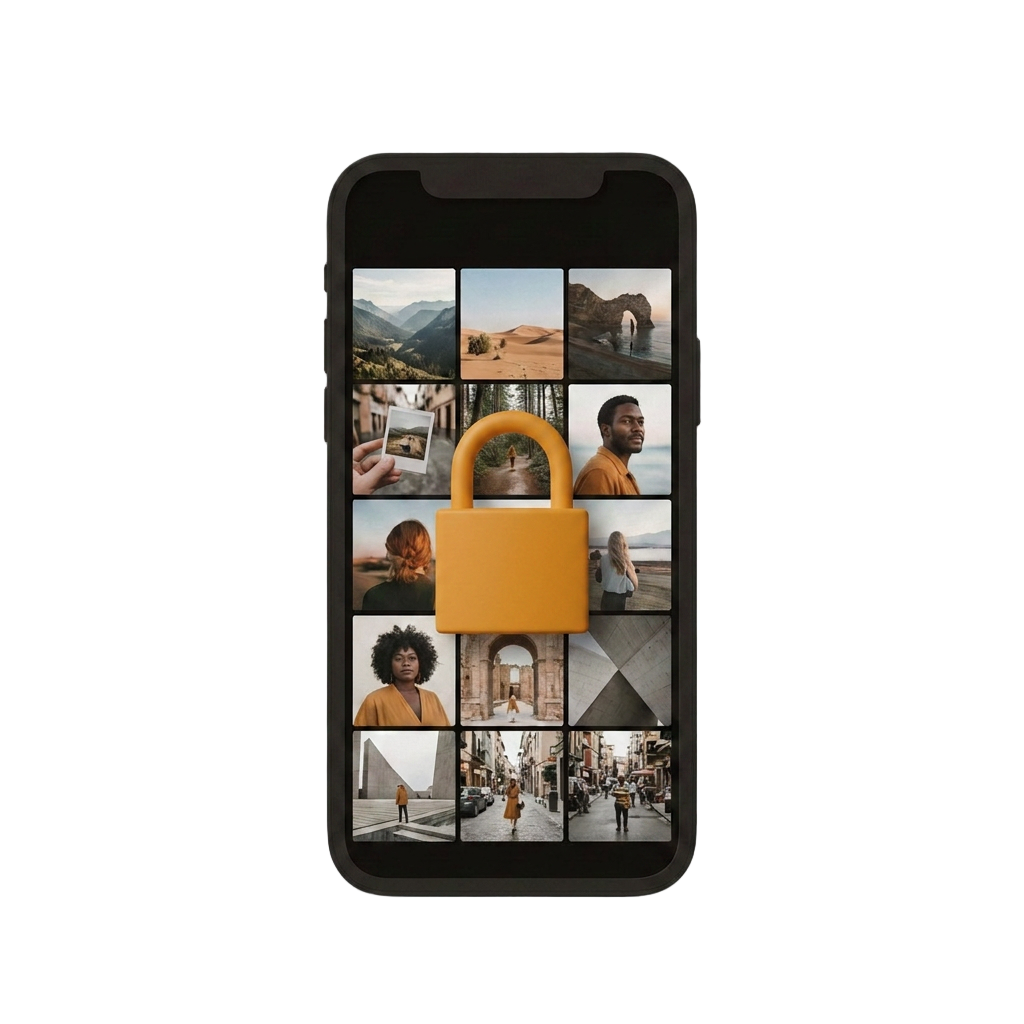
05 / ON-DEVICE PROCESSING
The conversion itself
does not need an upload.
Selected HEIC files are converted to JPG on the iPhone instead of being sent through a browser-based conversion service. Your source photos remain under your control.
See the complete workflow
Choose. Configure.
Convert and save.
Return to the homepage for the three-step explanation, real app screenshots, and answers to common HEIC-to-JPG questions.