When HEIC gets rejected

Convert HEIC to JPG
on your iPhone.

When a website, workflow, or recipient needs JPG, convert one iPhone photo or the whole batch. Nothing needs to leave your device, and you choose the quality, resolution, and location metadata before saving.

See how it works Download on the App Store
On-device processing Single & batch Quality & resolution Metadata control
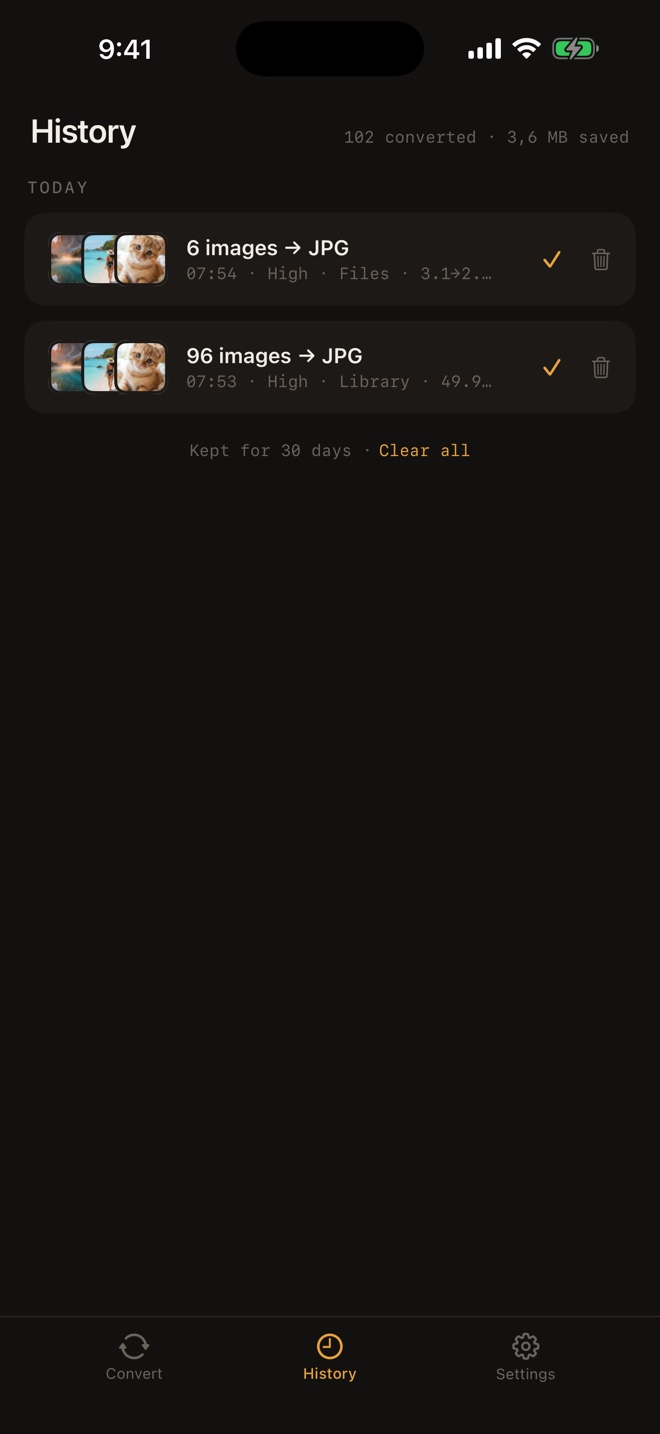
Conversion history in Batch HEIC to JPG Converter
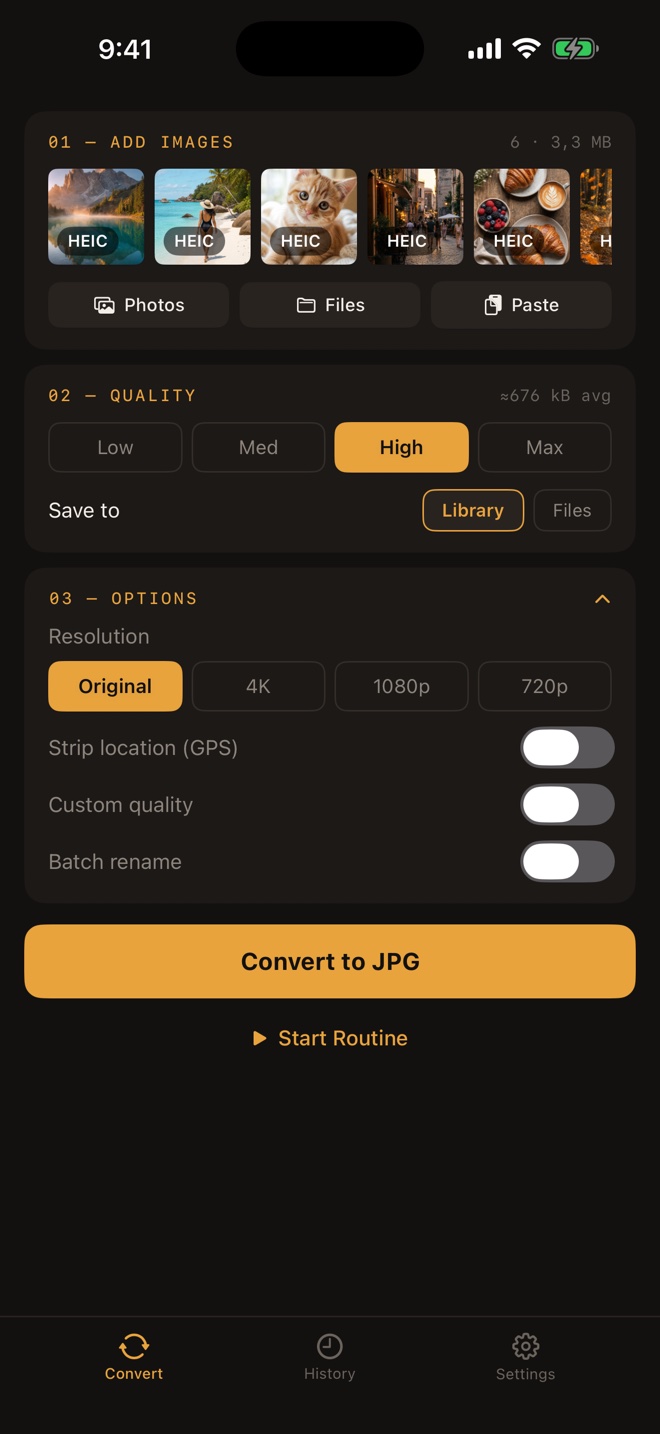
JPG quality, resolution, and metadata controls in the app
Batch HEIC to JPG Converter app icon
Processing on your iPhone

From iPhone HEIC
to ready-to-use JPG.

Batch HEIC to JPG Converter keeps selection, output settings, conversion, and saving in one iPhone workflow. The conversion itself does not require uploading your photos.

Explore every feature

01 / BATCH CONVERSION

One photo or
the whole set.

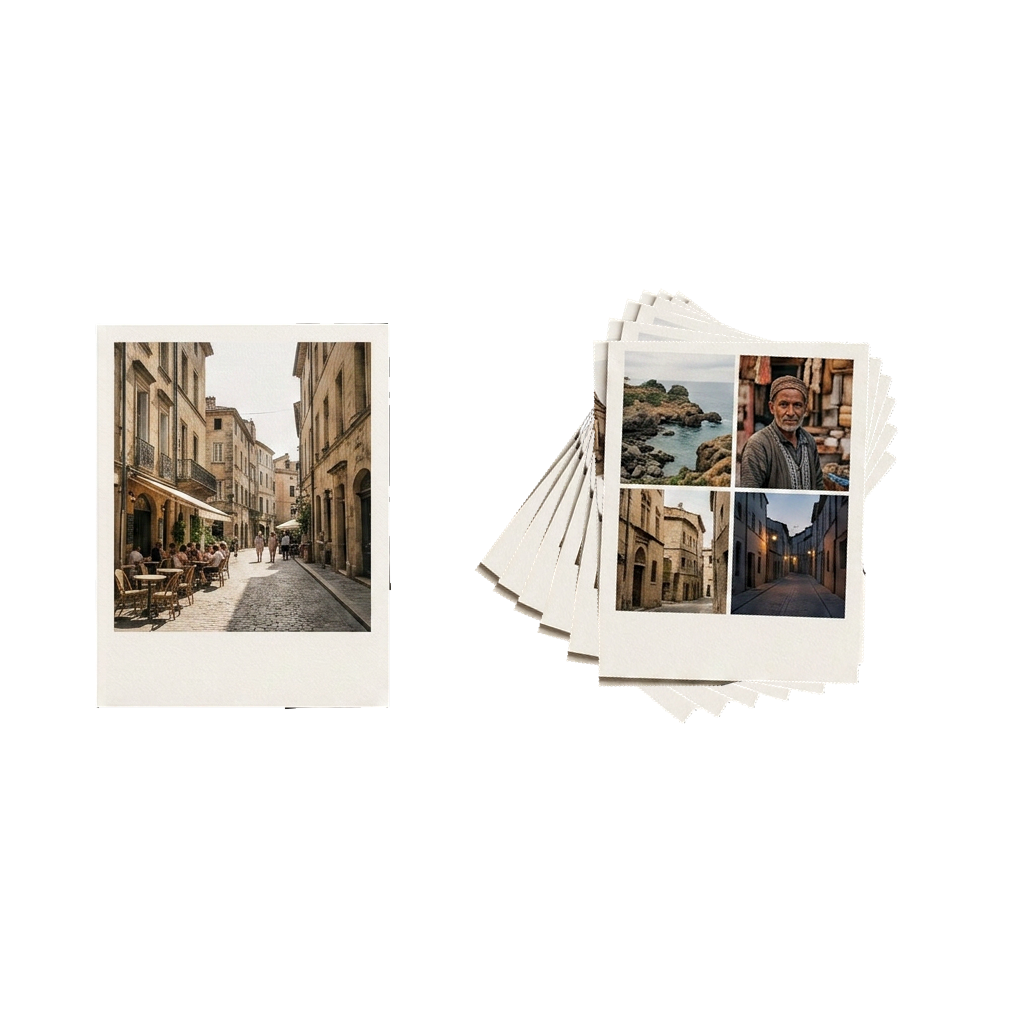
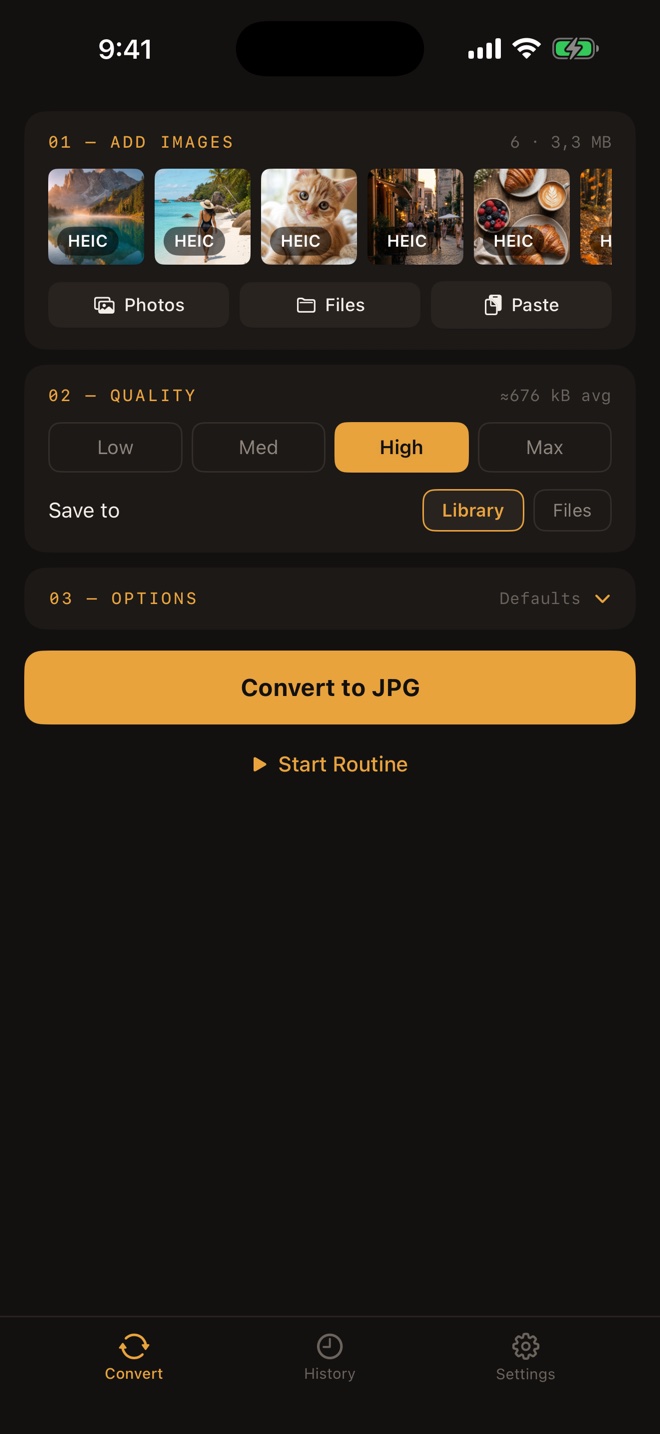
Batch convert HEIC to JPG when a complete set needs the same output. Select multiple HEIC files, apply one configuration, and create the JPG results together—whether you call it batch, bulk, or multiple-photo conversion.

Read the batch conversion guide
One selected photo beside a stack representing batch conversion Multiple files selected

02 / REUSABLE ROUTINES

Save the setup.
Repeat the result.

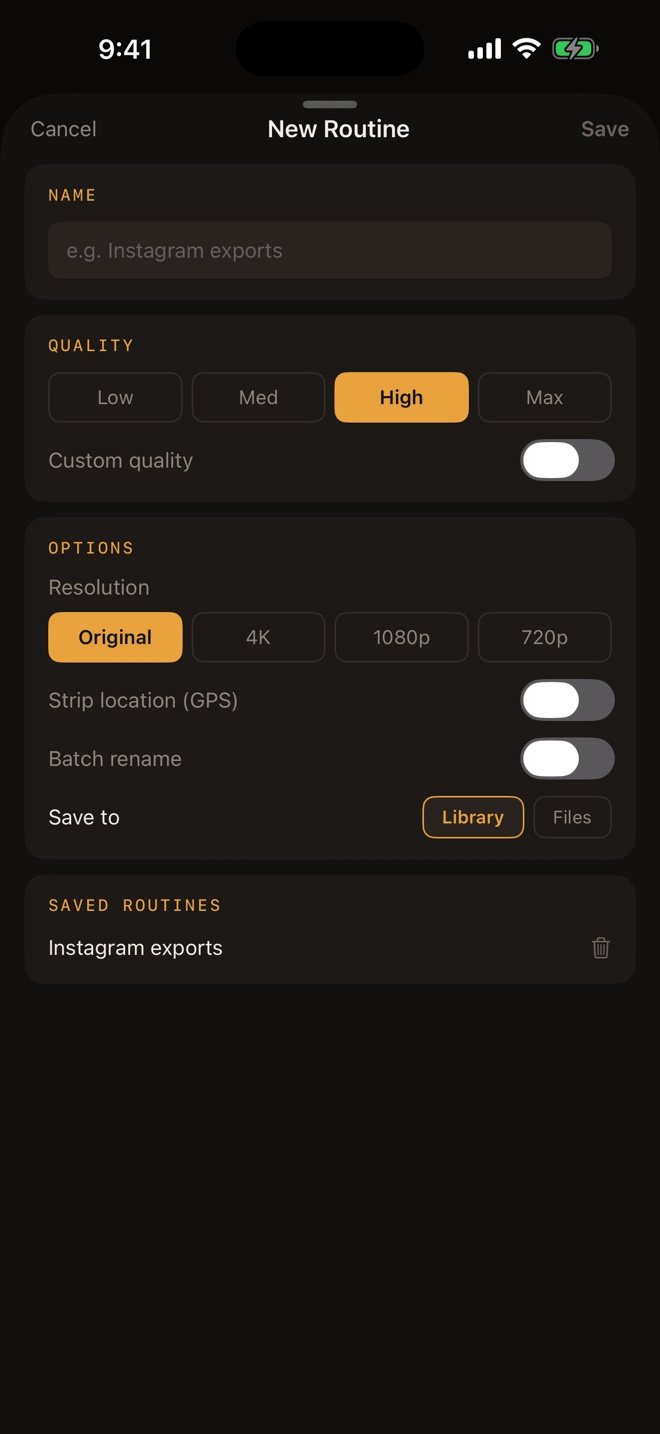
Keep a reusable conversion routine when you regularly need the same JPG quality, resolution, and metadata choice. Conversion history helps you return to completed work.

Circular arrow around a play button representing a reusable conversion routine

03 / JPG OUTPUT

Choose the output
before you convert.

JPG qualityChoose
ResolutionOriginal or adjusted
LocationKeep or remove

04 / PHOTOS & FILES

Start and finish
where you need.

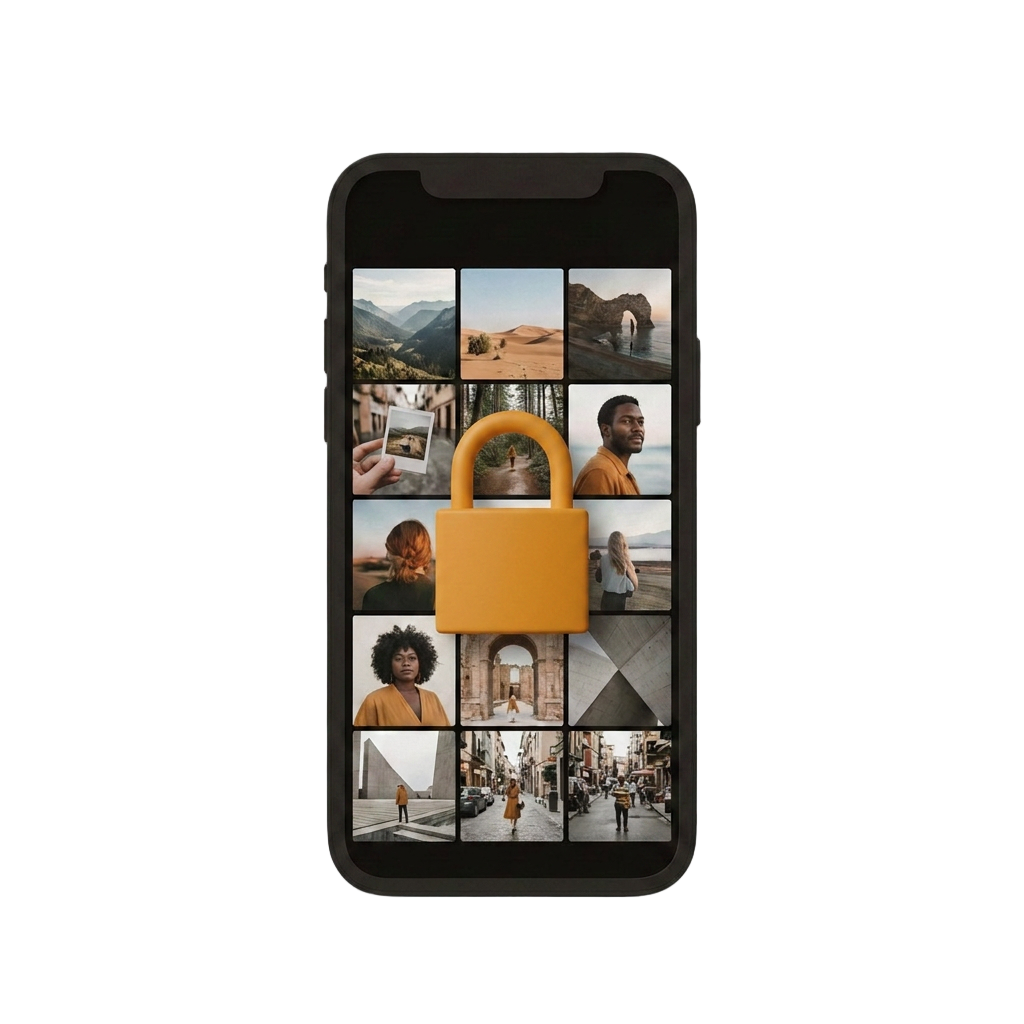
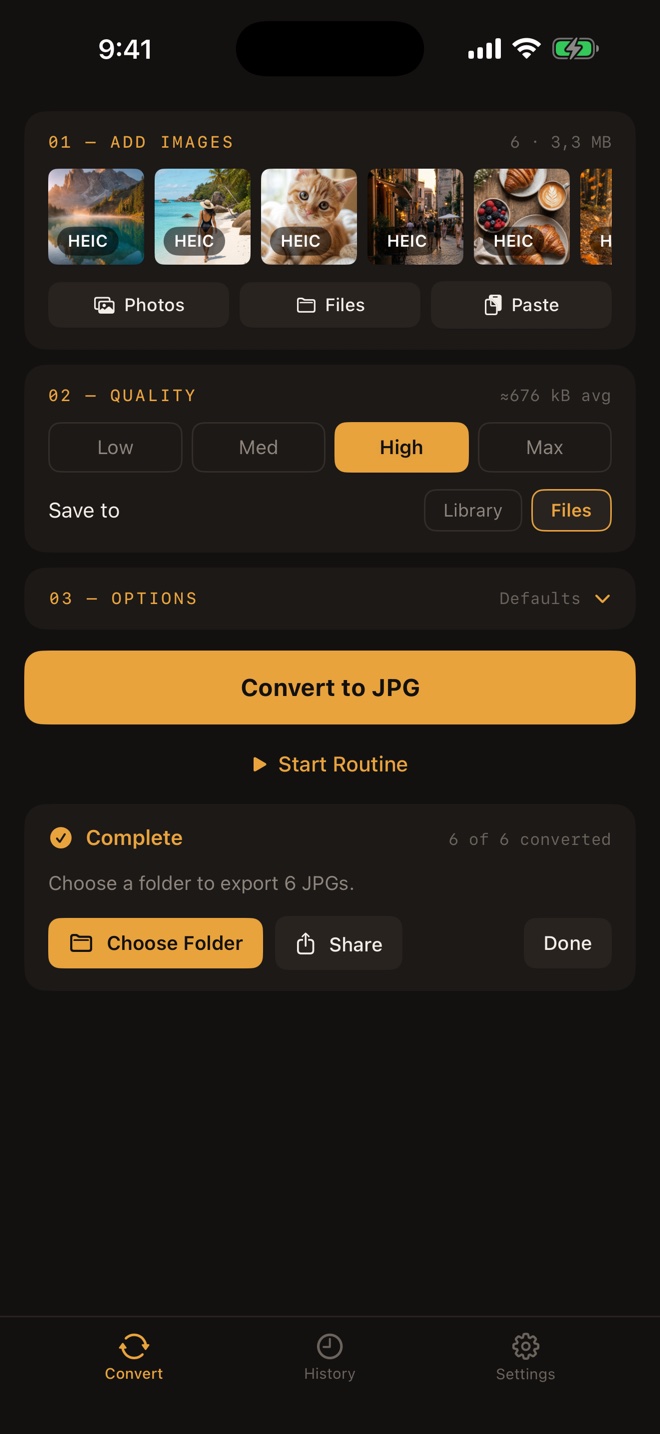
Import HEIC or HEIF photos from Photos or Files. Save the converted JPG files back to Photos or into a Files folder for uploading, organizing, or sharing.

An iPhone photo library protected by a lock

Choose.
Configure.
Convert.

Three clear steps take an iPhone photo from HEIC or HEIF to a JPG saved in the place you choose.

  1. 01

    Choose photos

    Import one HEIC image or a batch from Photos or Files.

  2. 02

    Configure output

    Choose the JPG quality and resolution, then keep or remove location metadata.

  3. 03

    Convert and save

    Process the photos on your iPhone and save the JPG results to Photos or Files.

Every step stays
clear and close.

Select a batch, configure the JPG, save a routine, and return to conversion history without leaving the app.

Selected HEIC photos ready for batch conversion
01 Select a batch
Expanded JPG quality, resolution, and location options
02 Control the output
Completed JPG batch ready to save or share
03 Save the JPGs
Routine editor with saved conversion settings
04 Save a routine
Conversion history with completed batches
05 Review history

ON-DEVICE PROCESSING

The conversion stays
on your iPhone.

Photos do not need to be uploaded to a remote converter. The HEIC-to-JPG conversion itself runs on the device, so it can process the selected files without sending them through a browser service.

Start with the problem
in front of you.

Prepare a JPG for a rejected upload, an email attachment, or a folder-based Files workflow without changing your entire photo library.

01

A website won’t accept the photo from my iPhone

Fix a rejected HEIC upload on iPhone by creating a JPG copy with the quality, resolution, and location-metadata settings you choose.

02

The person I emailed can’t open my iPhone photo

Create JPG copies of iPhone HEIC photos before emailing them. Choose quality, resolution, metadata, and a clear save destination.

03

When your iPhone photos won’t open on Windows

When transferred iPhone HEIC photos will not open on Windows, create compatible JPG copies on your iPhone and transfer the checked results.

04

When you need an entire iPhone album in JPG

Prepare an iPhone album for JPG delivery with one shared batch setup, clear source and destination choices, and representative output checks.

05

When an event photo delivery needs JPG files

Prepare HEIC event photos for client JPG delivery with a defined selection, consistent batch settings, metadata decisions, and final checks.

06

When the print shop asks for JPEG instead of HEIC

Create a full-resolution JPG copy for a print shop, confirm its exact requirements, inspect the result, and keep the original HEIC photo.

07

What to do when an iPhone photo is too large to upload

Prepare a smaller JPG copy for an upload form by adjusting quality or resolution, checking the result, and keeping the original HEIC photo.

08

How to share an iPhone photo without location data

Create a JPG copy of an iPhone photo with its location metadata removed, verify the output, and keep the original photo unchanged.

09

How to convert private HEIC photos without uploading them

Convert HEIC photos to JPG directly on your iPhone without uploading the selected files to a remote converter, then verify and save the outputs.

10

How to reuse HEIC-to-JPG settings for repeated jobs

Save a reusable conversion routine for repeated HEIC-to-JPG jobs, then select each new batch and review the settings before running it.

Browse all scenarios

Understand the format.
Choose the right workflow.

Practical answers for batch conversion, JPEG output, iPhone Camera settings, and the difference between HEIC and JPEG.

01

Batch convert HEIC to JPG on your iPhone

Convert multiple HEIC photos to JPG on iPhone in one batch. Apply consistent quality, resolution, and location-metadata settings before saving.

02

HEIC vs JPEG: which format should you use?

Compare HEIC and JPEG for iPhone photos, including storage efficiency, compatibility, metadata, quality, and when converting a copy makes sense.

03

How to save a photo as JPEG on iPhone

Save an iPhone HEIC photo as a JPEG copy. Choose quality, resolution, and metadata, then save the JPG to Photos or Files.

04

Why are iPhone photos HEIC?

Learn why iPhone photos are saved as HEIC, how High Efficiency capture reduces storage use, and when creating a JPEG copy is useful.

05

How to turn off HEIC on iPhone

Turn off HEIC capture for future iPhone photos by choosing Most Compatible in Camera settings, and understand what changes before switching.

06

How to convert HEIC to JPG on iPhone

Convert a HEIC photo to JPG on your iPhone. Choose the source, quality, resolution, location metadata, and save location, then verify the result.

07

What is a HEIC file, and how do you open it?

Learn what a HEIC file is, how to open it on a compatible device, and when converting a copy to JPG is the practical answer.

08

How to convert HEIC to JPG without unnecessary quality loss

Choose JPG quality and resolution settings that preserve as much useful detail as practical, while understanding why HEIC-to-JPG conversion is not lossless.

09

How to handle metadata and location data when converting HEIC to JPG

Understand photo metadata, EXIF, and location data when converting HEIC to JPG, including what the app can keep or remove from the output.

10

How to convert HEIF to JPG on iPhone

Convert a HEIF or HEIC image to JPG on iPhone, choose quality, resolution, and location data, then save the compatible copy to Photos or Files.

Browse all guides

Before you
convert.

Answers about HEIC, JPG quality, batch conversion, privacy, originals, metadata, and save locations.

What is a HEIC file?

HEIC is a common filename extension for images stored using the High Efficiency Image File Format. Many iPhones use it because it stores photos efficiently, but some websites, apps, and older systems still request JPG or JPEG.

How do I convert HEIC to JPG on iPhone?

Import a HEIC photo from Photos or Files, choose the JPG quality and resolution, decide whether to keep location metadata, convert it on the iPhone, and save the result to Photos or Files.

Can I convert multiple HEIC photos at once?

Yes. Select a batch of HEIC photos and apply the same JPG quality, resolution, and location-metadata choices to the group.

Are my photos uploaded?

No upload is required for conversion. Processing happens on the iPhone instead of sending the selected photos to a remote converter.

Does conversion delete the original?

Conversion creates a JPG result. The source HEIC remains in its original location unless you choose to remove it separately.

Can I keep or remove photo metadata?

You can choose whether location metadata is kept in or removed from the converted JPG output.

Does converting HEIC to JPG reduce quality?

JPG uses lossy compression, so the output-quality setting matters. Higher quality generally preserves more visible detail and creates a larger file. Adjusting resolution also changes the number of pixels in the output.

Where are converted JPGs saved?

You can save converted JPG files to Photos or Files, depending on how you want to organize or use them.

Batch HEIC to JPG Converter for iPhone

Convert the photo.
Keep control of the output.

One HEIC or a whole batch, converted to JPG on your iPhone with the quality, resolution, metadata, and destination you choose.

Download on the App Store Available for iPhone.