HEIF and HEIC are closely related terms, so the source may be described one way by a website and another way in a filename. The conversion goal remains the same: create a genuine JPEG output for the destination.
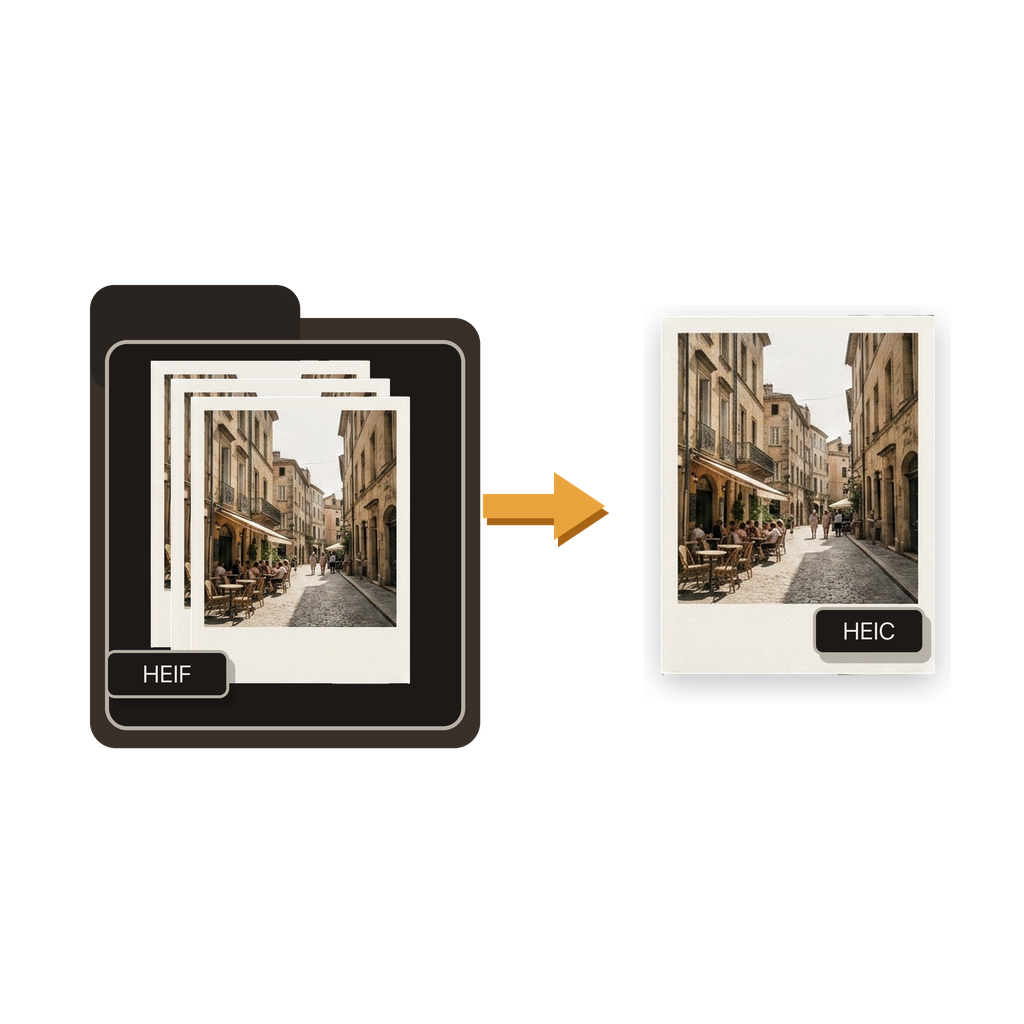
What is the difference between HEIF and HEIC?
HEIF means High Efficiency Image File Format. HEIC is a filename extension commonly used for HEIF images created by Apple devices. In everyday iPhone workflows, people may use the terms interchangeably even though one names the format and the other commonly identifies the file.
A destination that says it does not support HEIF may reject a .heic file for the same underlying compatibility reason. Changing the extension does not change the encoded format; conversion to JPEG does.
Where do you select a HEIF image on iPhone?
Choose Photos when the source is in your iPhone photo library. Choose Files when it is stored in iCloud Drive, On My iPhone, Downloads, or a folder supplied by another app.
Batch HEIC to JPG Converter supports both HEIC and HEIF input. Select one image when you need an individual copy, or select multiple sources when every output should use the same quality, resolution, and location choice.
How should you configure the JPG output?
Choose JPG quality according to the balance between visible detail and file size. Keep the original resolution when the output needs full pixel dimensions, or select an adjusted resolution when the destination benefits from a smaller image.
Decide whether the JPG should keep location information. Keep it when the place is useful to the intended workflow; remove it when the recipient does not need geographic data. This is a location-specific control, not a blanket claim about every metadata field.
Can you convert multiple HEIF files to JPG together?
Yes. Use a batch when the selected HEIF or HEIC images all need the same output configuration. Shared settings improve consistency and avoid repeating the same choices for each source.
Split the work into separate batches when some images need a different resolution, quality, location policy, or save destination. Reusable routines can preserve a preferred setup for recurring jobs, and conversion history helps you return to completed work.
How do you save and check the converted JPG?
Convert on the iPhone, then save the JPG results to Photos or Files. Use Photos when the copy belongs in your library, or Files when you need a folder for upload, organization, or transfer.
Open the output from the selected destination and confirm that it is a JPG, looks suitable, and has the required pixel dimensions. Keep the HEIF source until the website, recipient, or workflow has accepted the converted file.
Source for iPhone format behavior: Apple Support: Using HEIF or HEVC media on Apple devices.
Common questions
Is a HEIC file a HEIF image?
HEIC is a filename extension commonly used for images stored in HEIF, especially those created by Apple devices.
Can the app convert HEIF as well as HEIC?
Yes. Batch HEIC to JPG Converter supports HEIC and HEIF image input and creates JPG output on iPhone.
Can I convert more than one HEIF image at a time?
Yes. Select a batch and apply shared JPG quality, resolution, and location settings to the group.
Does changing .heic to .jpg convert the image?
No. Renaming the extension does not re-encode the file. Use an actual conversion workflow to create JPEG image data.
Where can converted JPG files be saved?
Save them to Photos for a library workflow or Files for folder-based organization, upload, or transfer.
Do HEIF images need to be uploaded for conversion?
No. The app performs the conversion on the iPhone, so the source images do not need to be sent to a remote converter.