“Send a full-resolution JPEG” sounds precise, but it can hide several decisions. Original pixel dimensions do not guarantee a sharp print, and a JPG that opens correctly may still fall short of the shop’s requested dimensions or preparation rules.
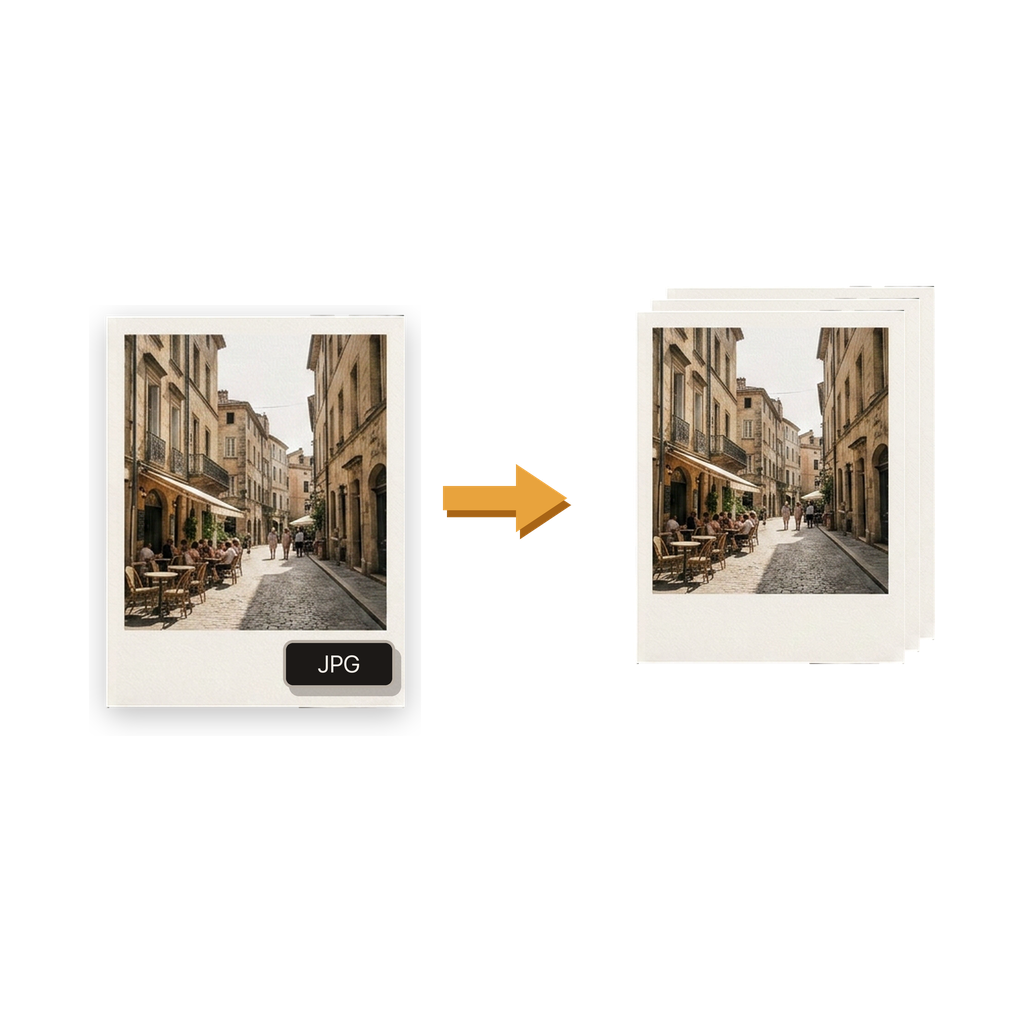
What should you ask the print shop before converting?
Confirm that JPG or JPEG is required and ask for the minimum pixel dimensions, maximum file size, accepted color profile, and preferred delivery method. If the print has a fixed aspect ratio, ask whether the shop will crop the image or expects you to provide a prepared crop.
Ask whether the shop means the source pixel dimensions when it says ‘full resolution.’ The app can keep the original resolution in the JPG output, but it cannot add genuine detail that the source photo does not contain or determine whether the image is suitable for a particular print size.
How do you create the requested JPEG copy?
Select the HEIC or HEIF source from Photos or Files in Batch HEIC to JPG Converter. Choose original resolution so the output keeps the source pixel dimensions, select a JPG quality appropriate to the shop’s requirements, and decide whether the delivered copy needs location metadata.
Save the result to Files when a dedicated print folder will make delivery clearer, or to Photos when the shop’s upload or sharing flow begins in the photo library. Open the saved JPG before handing it off.
Why is original resolution not the same as guaranteed print quality?
Resolution describes the number of pixels in the output. Print appearance also depends on the source focus, motion blur, noise, crop, enlargement, viewing distance, printer, paper, and the shop’s production process. Keeping original resolution avoids intentionally reducing pixel dimensions during conversion; it does not improve the source.
JPEG also uses lossy compression. A higher quality setting generally preserves more visible detail and produces a larger file, but the conversion is not lossless. Keep the HEIC original so another copy can be created if the first settings do not fit the print specification.
How does the app help, and what does the print shop still control?
The app creates a JPG copy on the iPhone, offers JPG quality and original-or-adjusted resolution controls, and can keep or remove location metadata. It imports from Photos or Files and saves the output to either destination without requiring the photo to be uploaded for conversion.
It does not crop or retouch the image for a specific print, calibrate color, add missing detail, inspect a physical proof, choose paper, manage the shop’s upload, or guarantee a particular print result. The print shop remains the authority on accepted files and production requirements.
What should you check before sending the JPEG to print?
Treat the converted JPG as a delivery copy rather than a replacement for the source. Compare the result with the requirements you received and ask the shop to confirm anything that remains ambiguous.
- Record the required format, minimum dimensions, maximum size, crop, and color instructions.
- Select original resolution when the shop requests the source pixel dimensions.
- Inspect the source for focus, blur, noise, and unwanted cropping before conversion.
- Open the saved JPG and confirm its orientation, framing, and visible detail.
- Deliver the JPG through the method specified by the print shop.
- Keep the HEIC source until the print has been produced and accepted.
Common questions
Is JPG the same as JPEG for a print shop?
JPG and JPEG refer to the same image format in practical use. Follow the shop’s requested filename or upload rules if it specifies a particular extension.
How do I convert HEIC to JPG at full resolution?
Choose original resolution in the app so the JPG keeps the source pixel dimensions. This avoids intentional resizing, but JPEG compression still applies and the process cannot add detail missing from the source.
Does full resolution guarantee a sharp print?
No. Print sharpness also depends on source focus, motion, noise, crop, print size, viewing distance, and the shop’s production process. Ask the shop to assess suitability for the intended size.
Is HEIC-to-JPG conversion lossless?
No. JPEG uses lossy compression, so choose the JPG quality deliberately and keep the original HEIC file. Original resolution preserves pixel dimensions, not every aspect of the source encoding.
Should location metadata stay in a print file?
Most print production does not require a saved GPS location, but confirm the workflow. The app lets you keep or remove location information from the converted JPG.
Can the app prepare the crop and color profile for the shop?
No. The app handles HEIC-to-JPG conversion and its documented output controls. Cropping, retouching, color preparation, proofing, and print-production decisions need a separate workflow or guidance from the shop.